
Board settings: look, access, language and roadmap
Change how your Featurevote board looks, who can see it and post, which language it uses, and what the roadmap and known issues show.
Your board settings control how visitors see and interact with your Feedback Portal, the board your visitors see. Open Settings in your dashboard. They are the pages under Feedback portal in the list on the left: Details (General and Localization below), Appearance, Access and submissions (Access and Feedback), Portal features (Roadmap, Changelog and Known issues) and Tags.
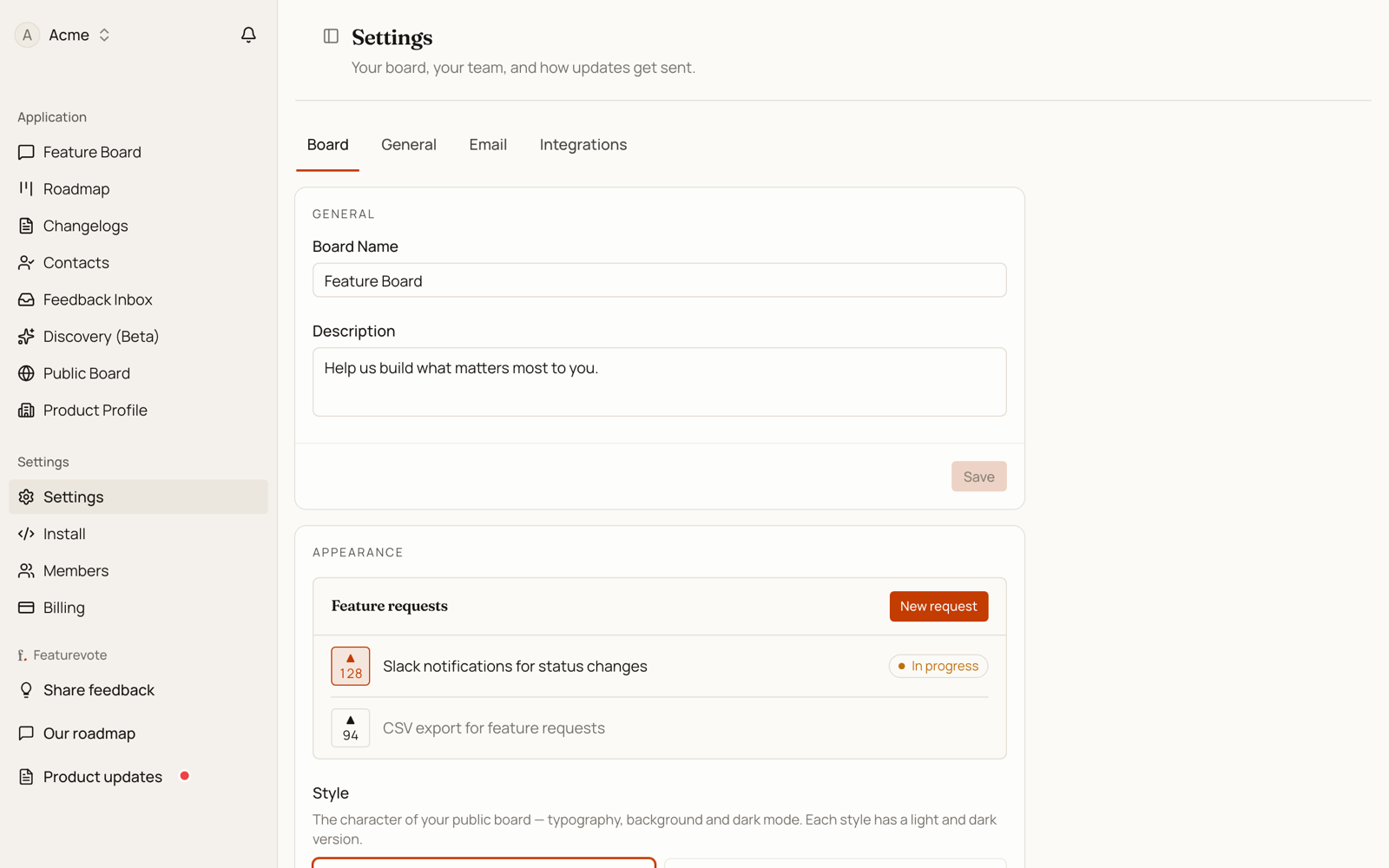
Each page saves as a whole. Change anything and a bar appears at the bottom with Discard and Save changes, so you can change several cards and save them together, and nothing reaches your Feedback Portal until you do. Leave the page with changes you haven't saved and Featurevote asks first.
A board set up for a shared list starts with Feedback off, since a list has no team to message.
General
- Board Name — the title shown on your Feedback Portal.
- Description — the small italic line above your board's title. Keep it to a sentence or two.
- Intro — optional, a longer text under the title. Say what your product is and what you want from visitors. Line breaks are kept and a pasted link becomes clickable.
Appearance
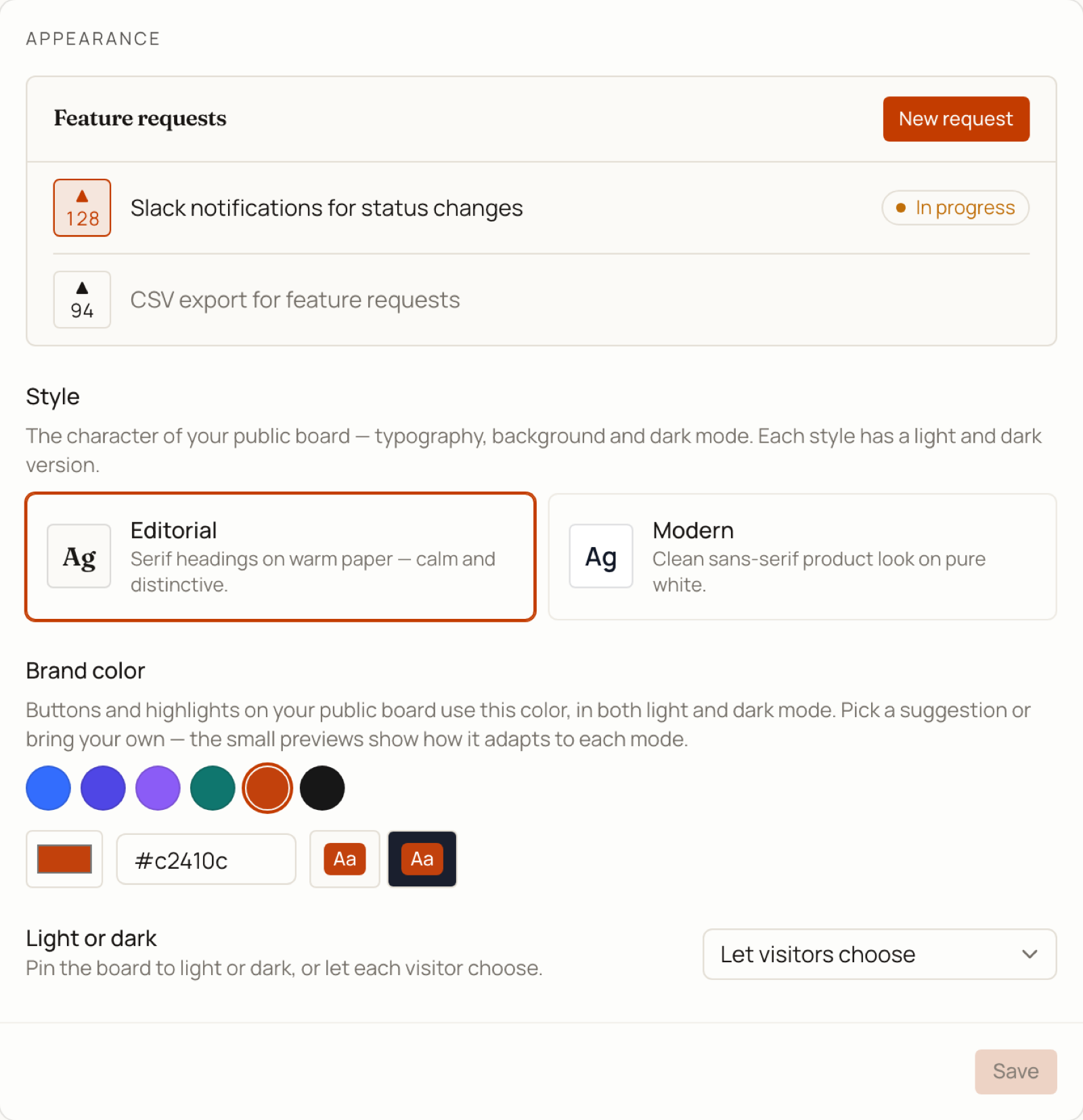
How your board looks is two separate choices: a style and a brand color. A live preview at the top of the card repaints as you change either one, so you see the result before you leave the page.
Style — the character of the board: typography, background, and how dark mode reads. Two to pick from, each with a light and a dark version:
- Editorial (the default) — serif headings on warm off-white paper. Calm and distinctive.
- Modern — clean sans-serif on pure white. The familiar product look.
Brand color — the color your board paints buttons, highlights and focus rings in, including a vote button once that visitor has voted. Click one of the suggested swatches, use the color picker, or type a hex value like
#4f46e5. Featurevote works out a readable shade for light mode and a separate one for dark mode, so a color that only works on white still works on a dark board — the two Aa chips next to the field show both, on the real board backgrounds.Leave it alone and the board uses the style's own color (burnt orange for Editorial, blue for Modern). Once you've set a color, a Use style default button appears to put that back.
Light or dark — pin the board to Light or Dark, or let each visitor choose (follows their system preference).
If your board used Classic, Clean or Indigo: it looks exactly the same as before. Those three were the same sans-serif board with a different color, so they now show up as Modern with that color as your brand color. Nothing on your Feedback Portal changed, and you can pick any other color from here.
Access
Visibility — who can reach your board. Four levels:
Public Unlisted Hidden Private Your users, through the embed yes yes yes no A stranger who has the link yes yes no no Google and other crawlers yes no no no Public is the default and the right choice for most boards — people find it, and it shows up in search. Unlisted keeps it off Google but open to anyone with the link. Hidden opens only for people arriving from your own site, which is what you want if your product is behind a login. Private turns the Feedback Portal off entirely, leaving it to your team. Hidden and Private come with the Growth, Pro and Lifetime plans, and a board already on one keeps it if the plan ends.
Access key — appears when you pick Hidden. Add it to your embed as
data-access-keyand it's the thing that lets your users through. Every snippet on the Install and share page already includes it. Regenerate issues a new one and stops the old one working within a few seconds — use it if a key gets out, then re-paste the new snippet.It hides the board page, not the data behind it, and anyone who can load your page can read the key in its source. See Hidden boards for the full setup.
Show team member names — when on, your team's real names appear on public comments and activity instead of "Team Member".
Visitor email — when a visitor has to leave an email.
- To post and comment is the default. Visitors vote in one click with nothing to fill in, and leave an email to post or comment.
- Not needed lets visitors post and comment without an email too. The email box stays, marked optional, for anyone who wants to hear back when you reply or ship it. A visitor who leaves none gets no emails, and shows by the name they typed, or as anonymous.
- To vote, post and comment asks for an email before a vote counts as well.
Items from visitors — whether visitors can add their own items to the board.
- Shown right away is the default. A visitor's item goes straight onto the board.
- Held for approval keeps a new item as Pending Approval until your team reviews it.
- Off means only your team adds items. It suits a list you wrote yourself for a group to rank. Visitors can still vote and comment. Private messages has its own switch.
Access can also be tied to a Patreon campaign or a Discord server, which is set up on the Integrations tab rather than here. Patrons only (Patreon) and Members only (Discord) limit voting, suggesting and commenting to your patrons or server members, and can hide the board from everyone else. See Patreon and Discord.
Localization
Board language — the language your Feedback Portal interface is displayed in. Pick a fixed language shown to every visitor, or Auto (visitor's browser) to follow each visitor's browser language. Available languages: English, Español, Français, Svenska.
Only the board interface is translated — your feature titles and descriptions stay in the language you wrote them in.
AI translations — lets visitors translate feature requests and comments into their own browser language using AI.
Feedback
- Private messages — lets visitors ask your team for help or send anything private. On your Feedback Portal it's the Get help button in the header, and in the embed it's a link under the feedback form. Messages land in your Feedback Inbox, and nobody else sees them. For a public list of bugs that others can see and say Me too to, turn on Known issues instead, or as well.
Roadmap
- Show roadmap — displays the Roadmap tab on your Feedback Portal. The tab appears once an idea is in one of the visible columns.
- Visible columns — choose which status columns appear on the public roadmap. Options are In Progress, Planned, Completed, Requested, and Not Planned. New boards show In Progress, Planned, and Completed by default.
See Using the Roadmap for how the roadmap works day to day.
Changelog
- Show changelog — displays the Changelogs tab on your Feedback Portal. It's on unless you turn it off, and the tab appears with your first published entry. Changelogs you already published keep their own links either way.
See Writing Changelogs for writing and sending them.
Known issues
- Show known issues — lets people report a bug as well as post an idea. Bugs get a Known issues tab on your Feedback Portal from the moment they're reported until they're fixed, then join Completed. It's off unless you turn it on.
See Known Issues for how it works day to day.
Once your board looks the way you want, head to Install Featurevote to put it in front of users.