Managing Feature Requests
Status, comments, voting on behalf, images, and private features
Once feature requests come in, here is everything you can do with them from the admin dashboard.
Requests that arrive by email or support chat belong on the board too — here's how to log a request and a vote on a customer's behalf, in 41 seconds:
Feature Statuses
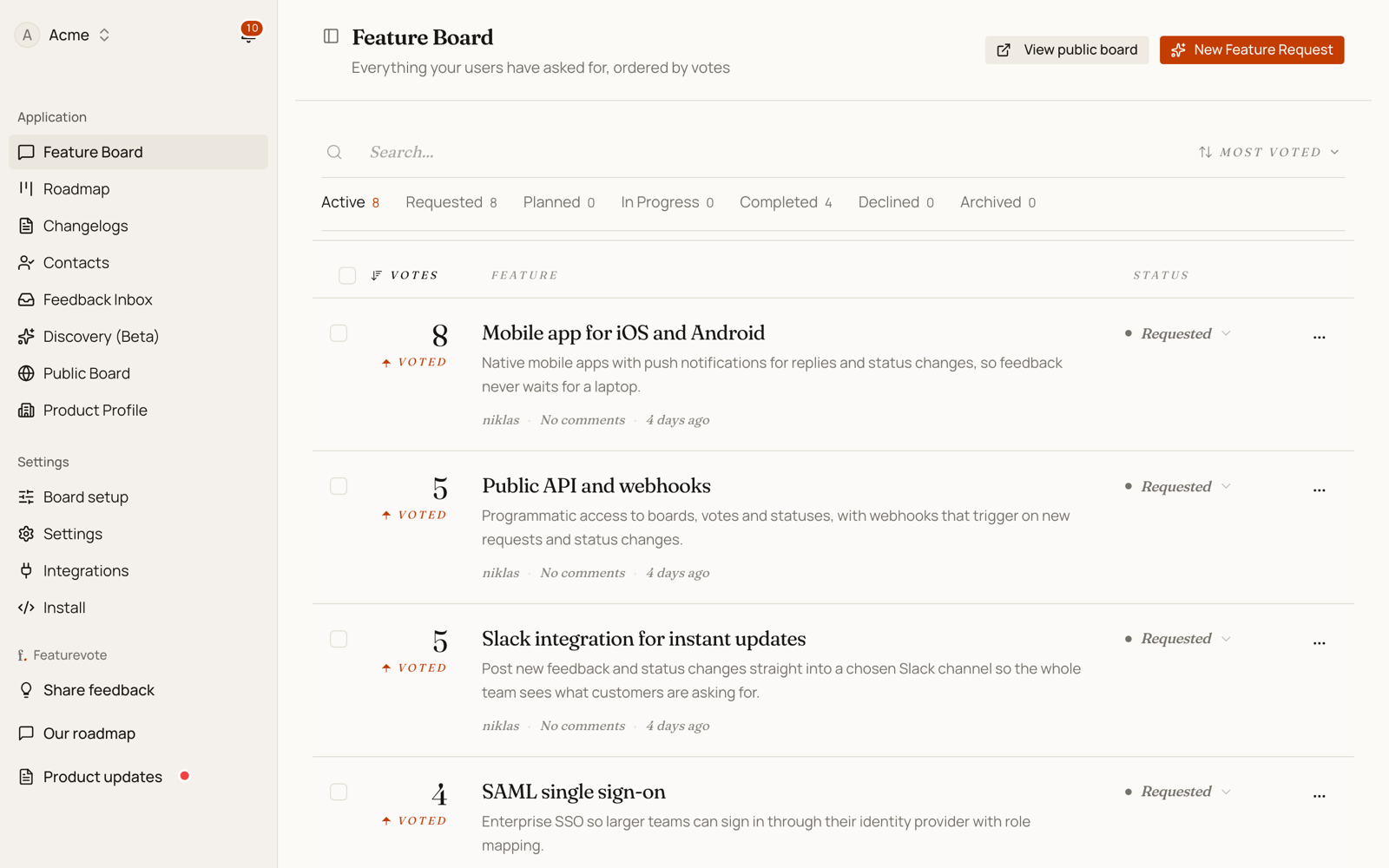
The number beside a request is its points total. Without vote weighting that's simply the number of voters. With the Patreon integration it's the sum of the weights behind it, and the list is ordered the same way your public board is.
Every feature has a status. Updating it keeps voters informed and your roadmap accurate.
| Status | Meaning |
|---|---|
| Under Review | Received, being evaluated |
| Planned | Approved, not started |
| In Progress | Currently being built |
| Done | Shipped |
| Declined | Won't be built |
Change the status from the feature list or the feature detail view. When a feature moves to Done, voters who submitted or upvoted it are notified by email automatically.
Comments
Comments let you communicate with users directly on a feature request.
- Click a feature to open the detail view, then scroll to the comment section.
- Leave a comment as the team — it appears publicly on the feature.
- Users can reply.
- Use comments to ask clarifying questions, share timelines, or close the loop when a feature ships.
Voting on Behalf
Sometimes a user asks for a feature via email or support, and you want their vote counted without asking them to visit the board.
- Open the feature detail view.
- Click Vote on behalf.
- Enter the user's email address.
- Their vote is recorded and attributed to that email.
This keeps vote counts accurate and avoids undercounting demand from users who engage through other channels.
Images
Features can have images attached for additional context — screenshots, mockups, or anything visual that helps clarify the request.
- When creating or editing a feature, use the image upload area to attach files.
- Images are visible to admins in the feature detail view.
- Images on public features are visible to anyone viewing the board.
Private Features
Mark a feature private to hide it from your public board while still tracking it internally.
- In the feature create or edit dialog, check the Private toggle.
- Private features are visible to team members only — they don't appear on the public board, roadmap, or anywhere outside the admin dashboard.
- You can make a private feature public at any time. Votes and comments are preserved.
See Private Features for more detail.
Finding and Merging Duplicates
Users often submit the same request in different words. AI detects these automatically.
- Select a feature request from your list.
- Click the duplicate detection button.
- Review the similarity scores and suggested matches.
- Select the features you want to merge and click Merge.
Votes and comments from merged features consolidate onto the primary request.
See Finding and Merging Duplicates for full detail.